


Installation and Connection
Install the included driver before using the monitors. Then choose the connection method for your laptop and connect the cables according to the manual.

This photo could not be loaded. Please try again.
Image 1 of 5
Portable monitor · 3 additional screens
Three additional screens for a complete workspace alongside your laptop. Keep your schedule, resources, and meetings visible at the same time, with a sturdy aluminum stand on your desk.
★★★★★4,8/5235 reviewsFree shipping · 50-day return policy
One-time driver installation required. Select your connection method below.
Plug the Panorama into a power outlet and connect the included USB-C cable to a compatible USB-C video port on your laptop. Install the included driver according to the manual.
Connect both the HDMI and USB-A cables to your laptop and use the AC power adapter. The USB connection and driver are part of the setup; HDMI alone is not sufficient.
Use the included cables, power supply, and installation instructions. Mains power is required.
You'll need a supported operating system, the included driver, and the correct connectors. OneCable and Panorama are not supported on Linux. Are you using Windows on ARM, a managed work laptop, or are you unsure about your MacBook? Please send us your exact model and operating system before purchasing.
Ask us to take a lookComplete your workspace with a bundle deal.
Please enter your email address. Our support team will contact you as soon as this screen is available again.
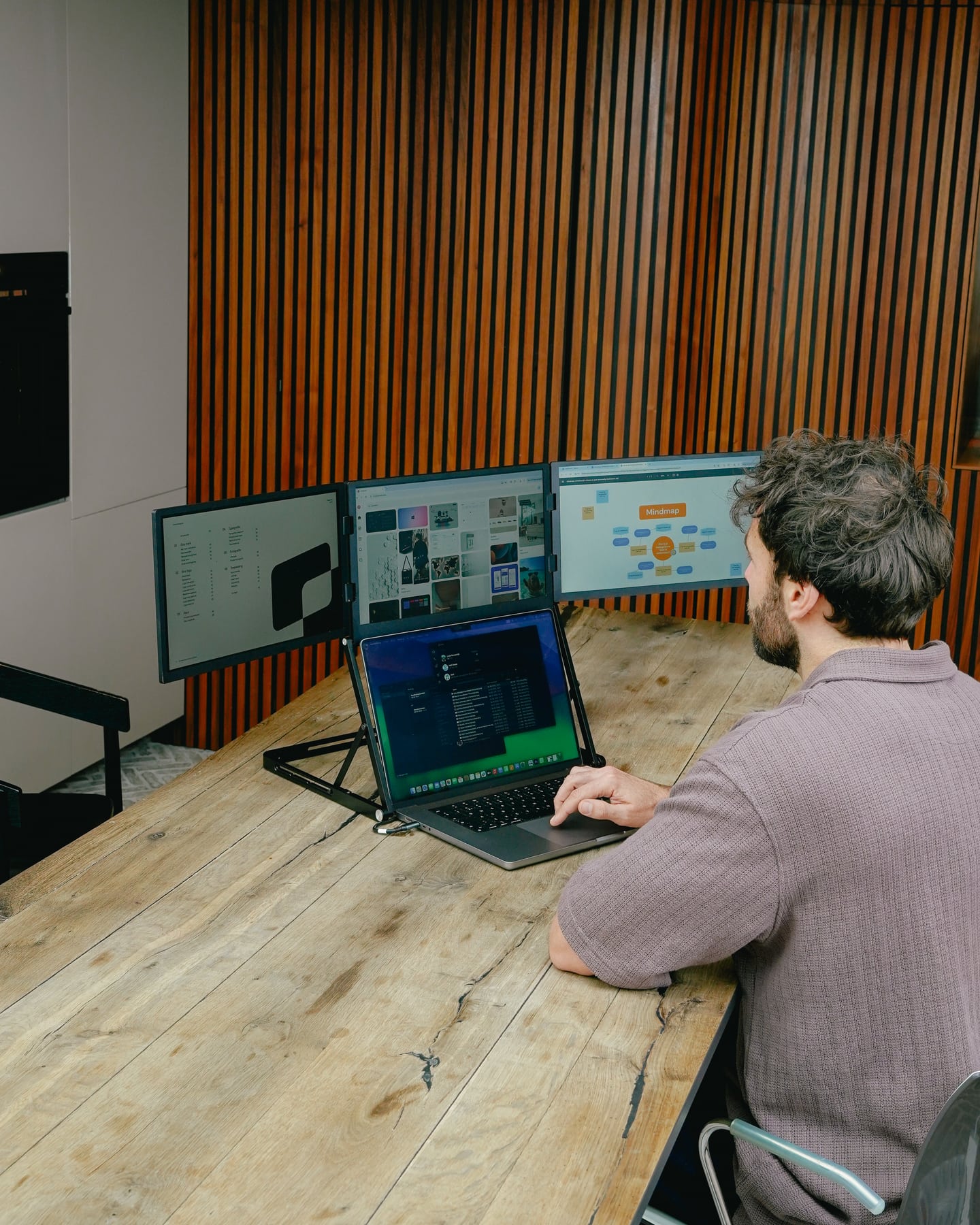
Designed for flexible work
Spread your programs across the three additional screens and choose a setup that’s comfortable to view. The Panorama is designed for people who like to set up a complete workspace and want to be able to use it at a different location as well.
Designed for Your Workday
Three 15.6-inch Full HD screens provide plenty of space to keep track of all your work at once. The aluminum chassis and built-in stand ensure a sturdy setup. The Panorama runs on AC power and requires a one-time driver installation.

The Panorama in Detail
Install the included driver before using the monitors. Then choose the connection method for your laptop and connect the cables according to the manual.
Set up the stand so it's stable, and choose a comfortable viewing angle. Position your laptop so that all the screens remain within reach.
In the display settings, select "Extend." Display your source, reference material, or schedule on an additional screen and continue working on your laptop.
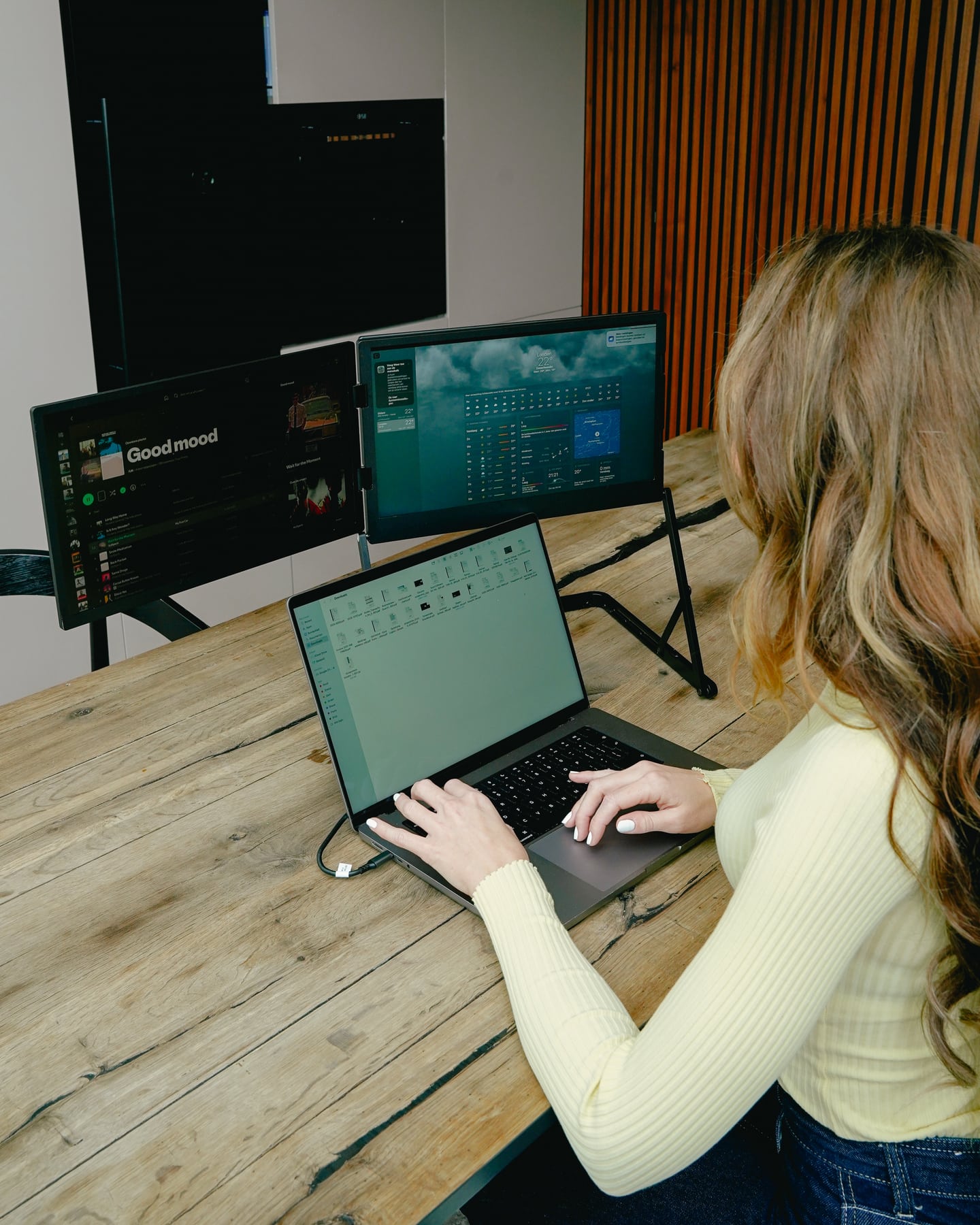
Screenmate Panorama 15.6"
Customer Reviews of the Screenmate Panorama
Questions Before Purchasing
Not sure about your connection, laptop model, or preferred setup? Screenmate's Dutch support team will work with you to find the right solution before you place your order.
Discuss your situation with Screenmate →USB-C + AC power, or HDMI + USB-A + AC power. You’ll need a supported operating system, the included driver, and the correct connectors. OneCable and Panorama are not supported on Linux. Are you using Windows on ARM, a managed work laptop, or are you unsure about your MacBook? Please send us your exact model and operating system before purchasing.
Install the included driver before using the monitors. Check in advance to make sure your operating system is supported and that you are allowed to install software on your laptop.
This depends on your specific MacBook model and the supported version of the included driver. Please send us your model and macOS version; we'll be happy to confirm which configuration is compatible.
You will receive the Screenmate Panorama 15.6″, the necessary connection cables, and the user manual. Be sure to use the included power adapter with a standard electrical outlet. Use the original cables and follow the connection instructions.
You have 50 days to decide whether the Screenmate Panorama is a good fit for your workspace. You can find the current terms and conditions in Screenmate's return policy.
