


Connect
Select the connection method supported by your laptop. Use the included cables for video and power. Make sure your laptop can handle two external displays at the same time.

This photo could not be loaded. Please try again.
Image 1 of 6
Portable monitor · 2 additional screens
Add two extra screens to your laptop for your schedule, documents, and meetings. The Expand folds up compactly and works without any additional software on a laptop with the appropriate ports.
★★★★★4,8/5267 reviewsFree shipping · 50-day return policy
Select the connection method that your laptop supports from the options below.
Connect each monitor using its own USB-C cable. Both ports on your laptop must support video output and provide sufficient power. Your laptop must be able to drive two external monitors at the same time.
Use USB-C with video for one monitor. Connect the other via HDMI for video and USB-A for power. Your laptop must support both video paths at the same time.
For each monitor, use HDMI for video and USB-A for power. The two HDMI outputs must be able to drive two separate external monitors; a simple splitter is not sufficient.
The necessary connection cables and user manual are included.
Having two USB-C ports doesn't automatically mean you can use two external displays. Check your laptop's video support and the limit on the number of displays that can be used simultaneously. For MacBooks, this varies depending on the chip, model, and whether the laptop is open or closed. If you're unsure, please send us your exact laptop model.
Ask us to take a lookComplete your workspace with a bundle deal.
Please enter your email address. Our support team will contact you as soon as this screen is available again.
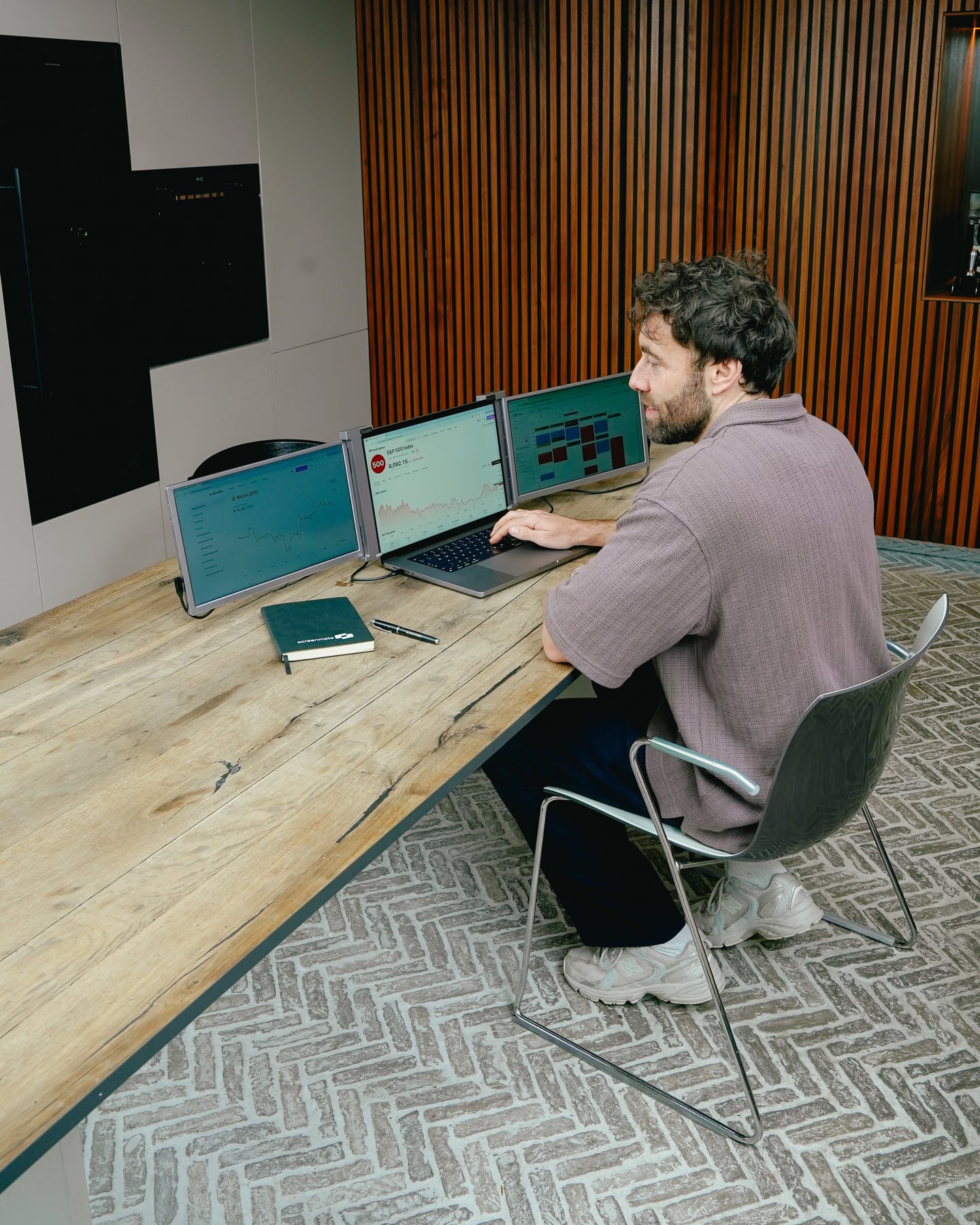
Designed for flexible work
Unfold the Expand around your laptop and position the stand securely. The foldable design packs down compactly when you're done working. Choose the model and color that best suit your workspace.
Designed for Your Workday
Two 15.6-inch Full HD screens give you space for documents, wide tables, and your meetings. The IPS panels are bright and clear. When you are finished, fold the Expand compactly for the next workspace.
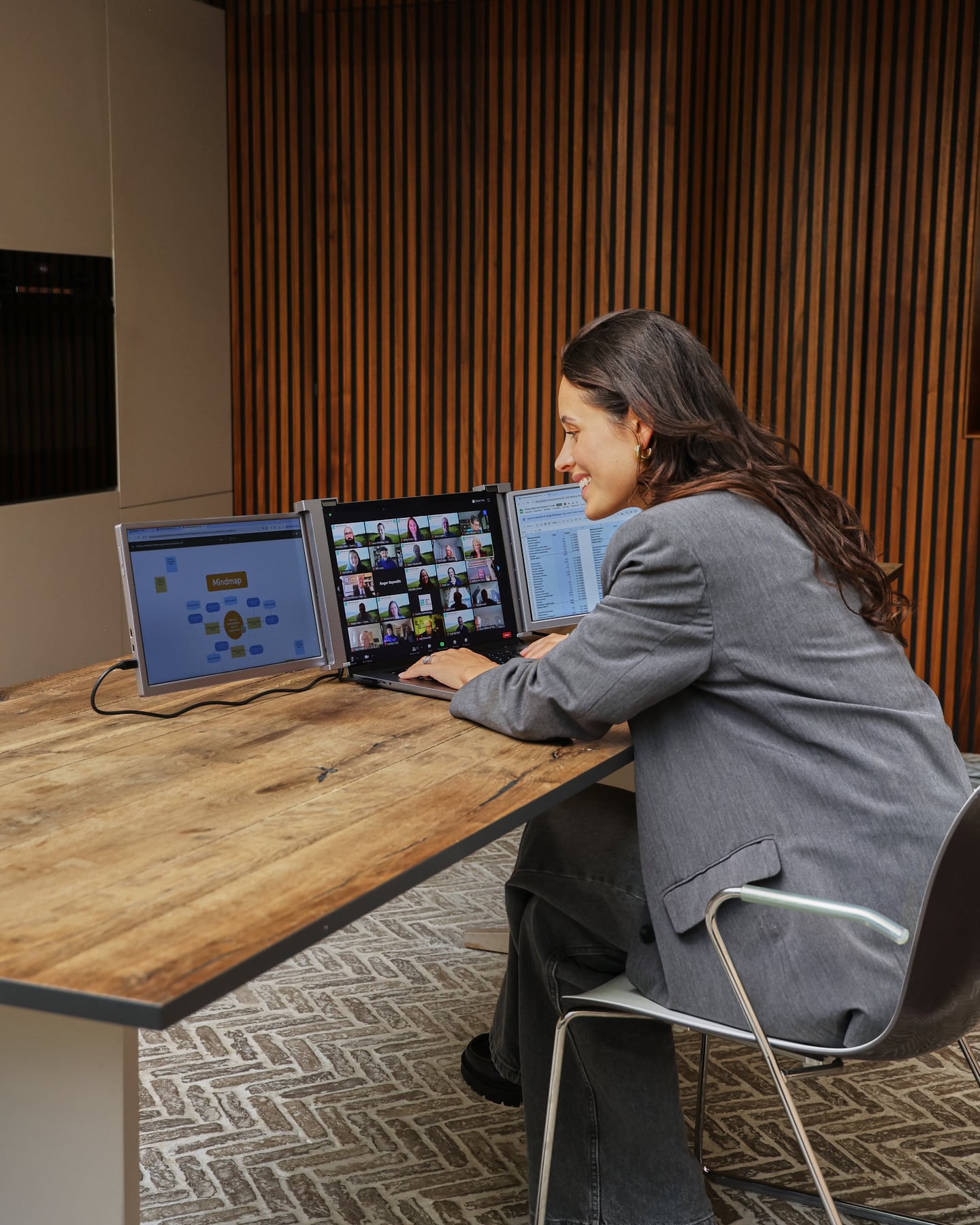
The Expand in Detail
Select the connection method supported by your laptop. Use the included cables for video and power. Make sure your laptop can handle two external displays at the same time.
Set up the stand so it's stable, and choose a comfortable viewing angle. Position your laptop so that all the screens remain within reach.
In the display settings, select "Extend." Display your source, reference material, or schedule on an additional screen and continue working on your laptop.

Screenmate Expand 15.6″
Customer Reviews of the Screenmate Expand
Questions Before Purchasing
Not sure about your connection, laptop model, or preferred setup? Screenmate's Dutch support team will work with you to find the right solution before you place your order.
Discuss your situation with Screenmate →2 × USB-C, or USB-C + HDMI + USB-A, or 2 × HDMI + 2 × USB-A. Having two USB-C ports doesn't automatically mean you can use two external displays. Check your laptop’s video support and the limit on the number of displays it can support simultaneously. For MacBooks, this varies depending on the chip, model, and whether the laptop is being used in an open or closed configuration. If you’re unsure, please send us your exact laptop model.
No additional driver is required. Your laptop must support the required number of external displays and the selected connection method.
Only if your specific MacBook supports two external displays via the selected ports. The limit varies by chip and model; for some models, it also differs between open and closed use. A USB-C hub does not automatically add support for a second external display. Please send us your model information for advice.
You will receive the Screenmate Expand 15.6″, the necessary connection cables, and the manual. Use the original cables and follow the connection instructions.
You have 50 days to decide whether the Screenmate Expand is a good fit for your workspace. You can find the current terms and conditions in Screenmate's return policy.

